Pimg.pro
English

Photo Grid Maker

Use this free photo grid maker to snap your pictures into a neat 2×2 or 3×3 grid of equal cells. Pick 1:1, 4:5 or 16:9 cells, set columns and gap, then copy or download with no upload.

or paste with Ctrl + Vdrag & drop filesnothing is uploaded

Click an image to edit · Shift-click or drag a box to select several · Ctrl/⌘ + scroll to zoom

  • Equal cells automatically
  • Images never uploaded
  • No watermark
How to make a photo grid

Quick answer

How to make a photo grid in 4 steps

Add your pictures to the canvas above and the photo grid builds itself. Then:

  1. Add your photos. Click Upload images, drop files on the canvas or paste them. Four pictures build a 2 × 2 grid, and nine build a 3 × 3.
  2. Pick the cell shape. Under Cell shape, choose 1:1, 4:5, 3:4, 4:3 or 16:9. Every photo is trimmed from the center to that shape so all cells match.
  3. Set columns and spacing. Use Columns to adjust the layout, then set the gap, outer border and background color.
  4. Copy or download. Click Copy to paste the finished grid anywhere, or Download it as PNG, JPG or WebP.

The trimming is not permanent: choose Original or another layout and every photo comes back whole.
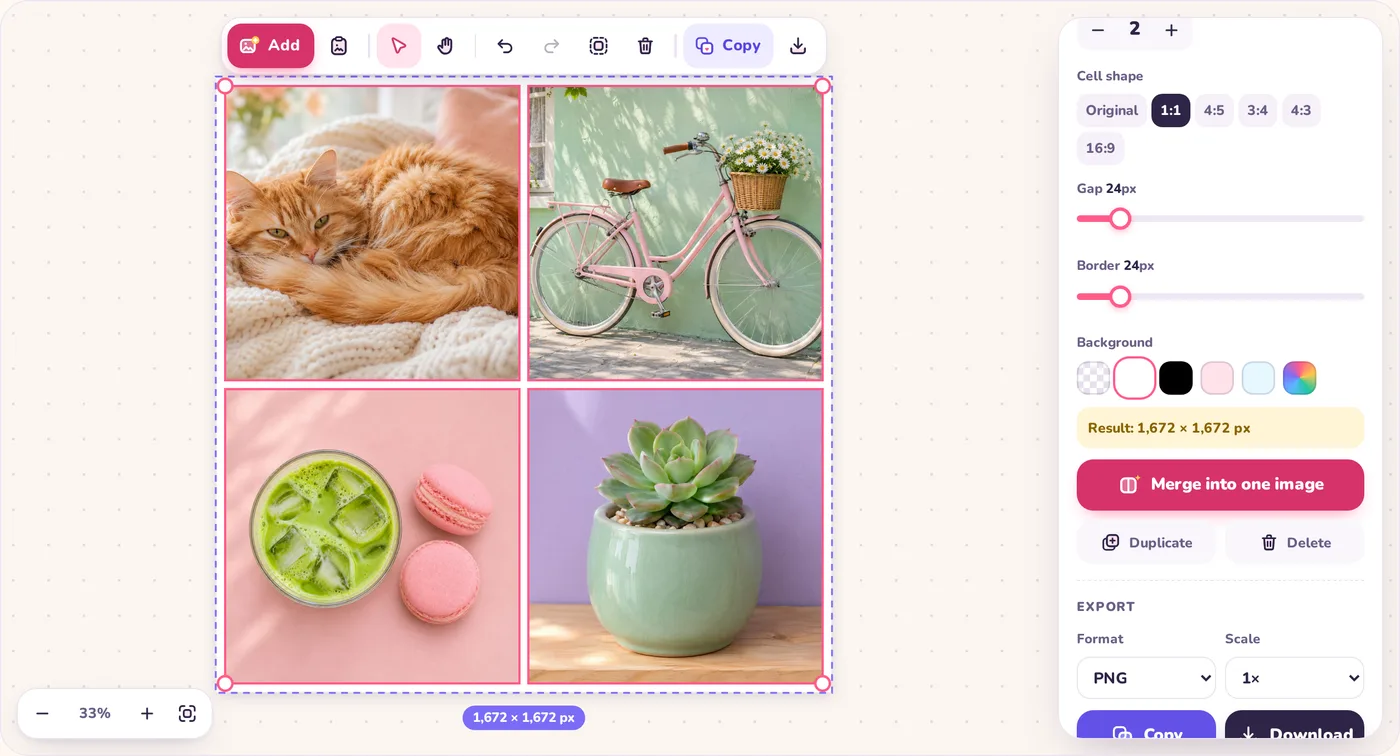

Pimg.pro photo grid maker with four photos in a square 2 by 2 grid and the Cell shape options open
Four photos of different shapes, trimmed into a square 2 × 2 grid.

Phone & desktop

Make a photo grid on iPhone, Android or computer

No collage app or sign-up required—this picture grid maker runs in any browser and fits popular Instagram and social ratios.

iPhone & Instagram 4:5 grids

  1. Open pimg.pro/photo-grid-maker in Safari and tap Upload images.
  2. Pick 4 or 9 shots from your Photo Library; choose 1:1 for square posts or 4:5 for upright Instagram layouts.
  3. Tap Share or save to Photos, then Save Image (see our iPhone photo guide for more tips).

Android browsers

  1. Open this page in Chrome or Samsung Internet and pick photos from your gallery.
  2. Adjust Columns, Cell shape and spacing in the bottom panel.
  3. Tap Download or Share or save to Photos to send the finished grid to any social app.

Windows, Mac & Chromebook

  1. Drag a folder of product or travel photos onto the canvas, or paste screenshots with Ctrl + V.
  2. Pick 1:1, 4:5 or 16:9 cells and fine-tune borders for slides, listings or blog posts.
  3. Press Ctrl + C to copy the grid to your clipboard, or export at 1×–3× PNG, JPG or WebP.

Cell shapes and tips

Which cell shape should you use?

The cell shape decides how each photo is trimmed and how the whole layout looks.

  • 1:1 squares

    The classic photo grid. With equal gaps, a 2 × 2 or 3 × 3 grid of squares comes out perfectly square, which suits a square social post.

  • 4:5 and 3:4 portrait

    Best for people and products shot upright, so heads and tops aren't cut off.

  • 4:3 and 16:9 landscape

    Good for travel shots, screenshots and video stills that are wider than they are tall.

  • Original

    Keeps every photo whole. Cells then follow each photo's own shape, so rows and columns can be uneven.

  • Choose what stays in frame

    Double-click a photo, pick the same ratio as the cells, move the crop box and apply. Then select all and click Grid again; your choice is kept.

  • Change the order

    Photos fill the grid left to right, top to bottom, in the order they sit on the canvas. Click empty space, drag a photo to its new spot, then select all and click Grid again.

Examples

Photo grids made with this page

The same four pictures in three layouts—square 2×2, portrait strip and wide 16:9—exported straight from the canvas.

Four photos in a 2 by 2 grid of square cells with a white gap and border
2 × 2 squares 1:1 cells with a white gap and border.
Four photos in one row of 4:5 portrait cells on a pink background
Portrait strip Four 4:5 cells in one row on a pink background.
Four photos in a 2 by 2 grid of 16:9 cells on a black background
Wide cells 16:9 cells in a 2 × 2 grid on black.

FAQ

Photo grid questions

Is this photo grid maker free?

Yes. This photo grid maker is free to use, needs no sign-up, and adds no watermark to anything you download.

Are my photos uploaded?

No. Your browser trims and arranges the photos on your own device. Nothing is sent to a server, and your canvas is kept in your browser so a refresh doesn't lose it.

How do I make a 2 × 2 or 3 × 3 photo grid?

Add four photos for a 2 × 2 photo grid or nine for a 3 × 3. The tool picks the column count for you, and the Columns plus and minus buttons let you change it anytime.

Can I use photos of different sizes and shapes?

Yes. With a cell shape selected, each photo is trimmed from the center to fit, so every cell is identical. Choose Original if you'd rather keep whole photos.

Can I choose which part of a photo shows in its cell?

Yes. Double-click the photo, choose the same ratio as the cells, move the crop box and apply. Then select all and click Grid again.

How many photos can a grid have?

There is no fixed limit. Very large grids are scaled down to the biggest image your browser can create, and the app tells you when that happens.

Can I make a collage with cells of different sizes?

Not in a grid: all cells in a grid are the same size. For a freer layout, place photos by hand on the image combiner and merge them with As placed.

Can I add a drawing grid on top of a single photo?

No. This tool arranges several photos into a grid. Putting grid lines over one photo, for example to help with drawing, needs a different kind of tool.

Does it work on my phone?

Yes. Tap Upload images to pick photos from your library, adjust the grid in the panel at the bottom, then download or share it. See how to combine photos on iPhone for the iPhone steps.

Which file formats can I save?

PNG, JPG or WebP. PNG keeps a transparent background if you choose one; JPG makes smaller files for photos.

Ready to make your photo grid?

Scroll back up, add your photos and the grid builds itself.

Back to the canvas