Pimg.pro
English

How to Combine Photos on iPhone

Open this page in Safari, pick two or more pictures from your Photo Library, choose a layout and save the combined image back to Photos. Free, no app required, and nothing leaves your iPhone.

or paste with Ctrl + Vdrag & drop filesnothing is uploaded

Click an image to edit · Shift-click or drag a box to select several · Ctrl/⌘ + scroll to zoom

  • No app needed
  • Photos stay on your iPhone
  • Save straight to Photos
Step-by-step guide

Quick answer

How to combine photos on iPhone in 4 steps

The fastest way to combine two photos on iPhone—or several at once—without an app is right here in Safari:

  1. Pick photos from your iPhone. Tap Upload images, choose Photo Library and select two or more pictures.
  2. Choose how to combine them. Tap Side by side, Stacked or Grid. Keep Match smallest on so vertical and horizontal iPhone photos share one clean edge.
  3. Adjust gap, border or crop. Add spacing or a white frame in the bottom panel, or double-tap any photo to trim it before combining.
  4. Save back to iPhone Photos. Tap Share or save to Photos, then Save Image to store the result in your camera roll—or tap Copy to paste into Messages.

Want an iOS-only option? You can also combine photos on iPhone with the built-in Apple Shortcuts app, explained below.
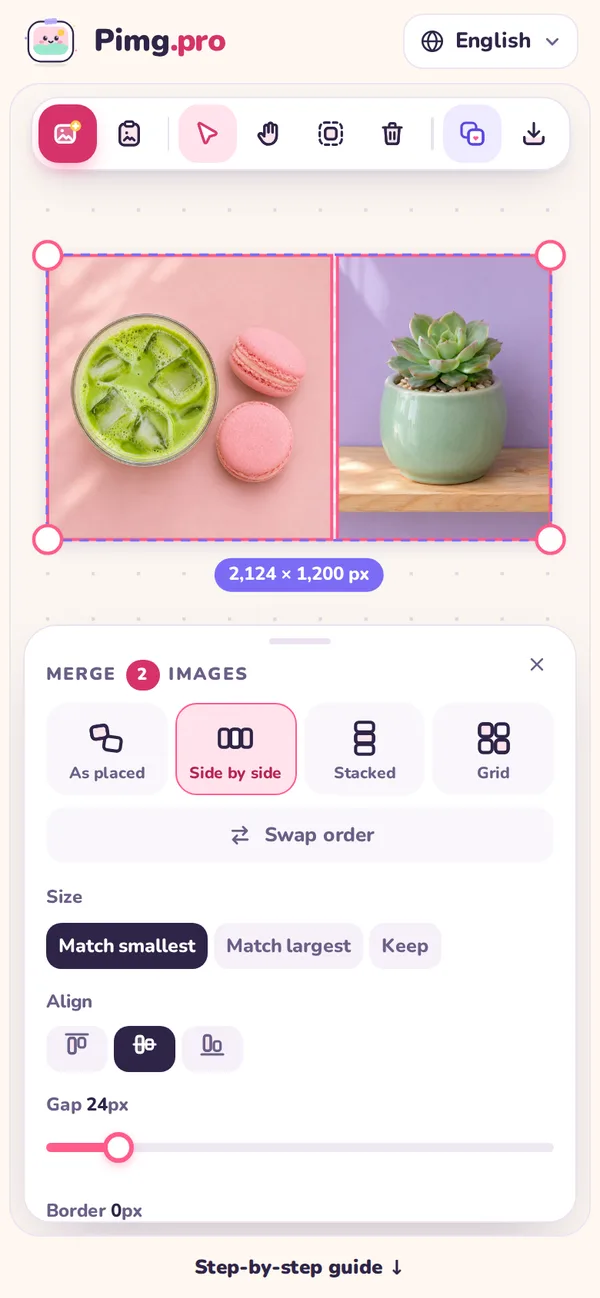
Pimg.pro on a phone screen with two photos combined side by side and the layout options open
Two photos side by side on a phone-sized screen.

Without an app

Two ways to combine photos on iPhone without an app

Both methods are free and need nothing from the App Store. Safari lets you preview, reorder and crop before saving; Shortcuts runs right from your iPhone Share Sheet once set up.

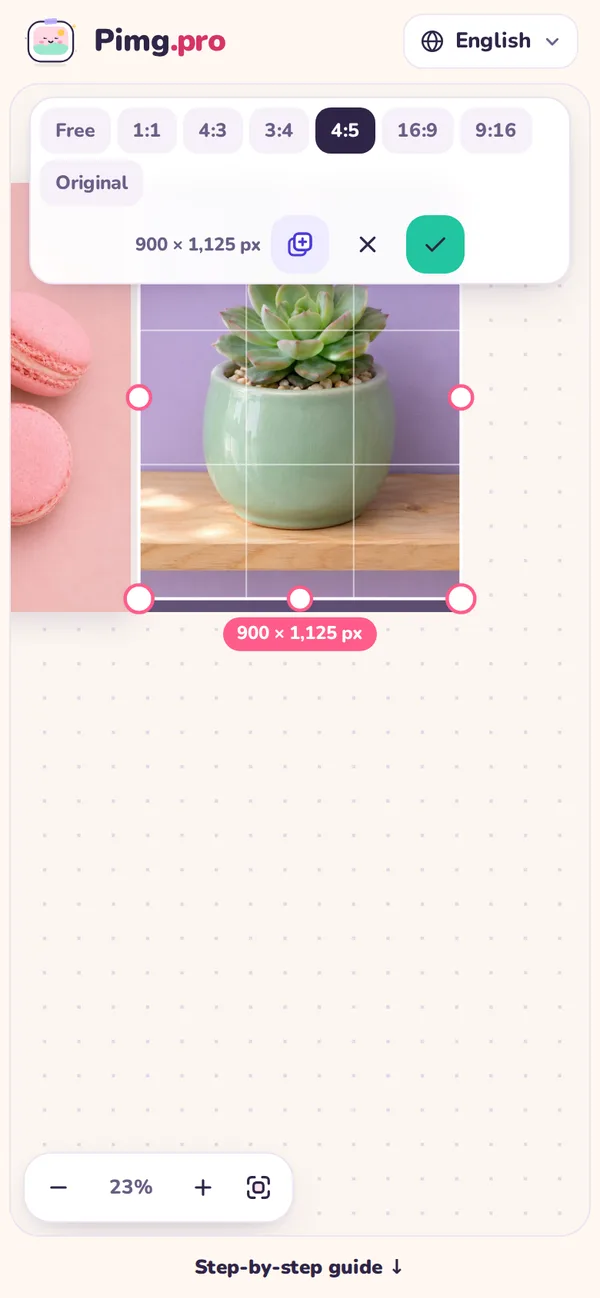
Cropping a photo to 4:5 on a phone-sized screen before combining it
Cropping a photo to 4:5 before combining.

Option 1: In Safari with Pimg.pro

  1. Open pimg.pro/combine-photos-iphone in Safari on your iPhone.
  2. Tap Upload images, select Photo Library and pick the pictures you want to merge.
  3. Choose a layout (row, stacked or grid), then set gap, border and background color.
  4. Tap Share or save to Photos and choose Save Image to save directly to the Photos app.

Option 2: Built-in Apple Shortcuts (with Share Sheet)

  1. Open the built-in Shortcuts app, tap +, and add Select Photos (expand the arrow and turn on Select Multiple).
  2. Add the Combine Images action, pick Horizontally, Vertically or In a Grid, and set spacing.
  3. Add Save to Photo Album, then tap the info icon (i) and turn on Show in Share Sheet so you can combine photos straight from the Photos app Share button.
  4. Shortcuts is handy for repeat merges, though unlike Safari you can't drag photos around, swap order visually or crop individual shots before combining.

Why the Photos app alone can't combine photos

  1. The built-in Photos app on iPhone has no native button to stitch two full photos into one image.
  2. iOS does let you press and hold a subject to lift and paste it into Notes or Messages—that extracts a cutout, whereas combining whole photos into a framed layout needs Safari or Shortcuts.

iPhone tips

Tips for combining photos on iPhone

Small tweaks in Safari that make combined iPhone photos look crisp in Messages, Instagram and your Photos library.

  • Mix vertical and horizontal shots

    Portrait and landscape shots look uneven together until Match smallest scales them to one clean height or width without stretching.

  • Stitch iPhone chat screenshots

    Use Stacked to combine iMessage, WhatsApp or Safari screenshots into one tall image you can send in a single text.

  • Swap photo order in one tap

    Photo Library picks can land in reverse order—tap Swap order in the bottom panel instead of re-selecting them.

  • Crop before saving to Photos

    Double-tap any photo to trim status bars or match 1:1 and 4:5 ratios before combining.

  • HEIC and Live Photos work in Safari

    Safari reads HEIC camera shots natively and adds the still frame from Live Photos without needing a converter.

  • Pick 1× for crispness or 0.5× for texting

    Export at 1× to preserve original megapixels, or switch to 0.5× JPG when you want a lighter file for email or chat.

Examples

Photos combined on iPhone with Pimg.pro

Real combined photos exported straight from Safari on mobile—zero uploads and zero watermarks.

A matcha latte photo and a succulent photo combined side by side with a white border
Two photos paired horizontally Two photos matched to one height with a white border, saved straight to Photos.
Two phone screenshots of Pimg.pro joined into one tall image
iPhone screenshots stacked Two tall phone screenshots combined vertically into one scrollable image.
Four photos cropped to squares and combined into a 2 by 2 grid
Four photos in a 2 × 2 grid Four photos trimmed to squares and merged into a 2 × 2 grid.

FAQ

Combining photos on iPhone: questions

Can I combine photos on iPhone without an app?

Yes. Open this page in Safari to combine photos on iPhone in seconds and save the result straight to Photos. iOS also includes a built-in Shortcuts action explained above.

Does the iPhone Photos app have a built-in combine button?

No. Apple Photos does not include a merge button. To combine two photos on iPhone without a third-party app, use Safari here or build a Combine Images shortcut in Apple Shortcuts.

How do I save the combined photo to my camera roll?

Tap Share or save to Photos, then choose Save Image. The picture appears immediately in your Photos app.

How do I put two photos next to each other on iPhone?

Add both pictures in Safari, select them and tap Side by side—or open the side by side photo maker to align two photos automatically.

How do I combine multiple iPhone photos into a grid?

Select 4 or 9 photos and tap Grid, or open the photo grid maker in Safari for automatic equal square or 4:5 cells.

How do I combine screenshots into one long image on iPhone?

Select your iPhone screenshots in Safari and tap Stacked. They join top to bottom; tap Swap order if you want to reverse them.

Can I combine photos into a PDF on iPhone?

Pimg.pro exports image files (PNG, JPG, WebP). For a multi-page PDF directly on iPhone, select photos in the Apple Files app, tap More (…) and choose Create PDF.

Are my photos uploaded to a server?

No. Safari processes and combines your photos locally on your iPhone itself. Your canvas stays in Safari storage on this device until you clear it.

Does it work with HEIC and Live Photos?

Yes. Safari opens HEIC camera photos directly and uses the still frame from Live Photos, keeping full 1× pixel sharpness.

Can I combine photos on iPad the same way?

Yes. Safari on iPad uses the exact same workflow, and with an iPad keyboard you can paste screenshots using Cmd + V.

Ready to combine photos on iPhone?

Scroll back up, tap Upload images and pick the pictures from your Photo Library.

Back to the canvas