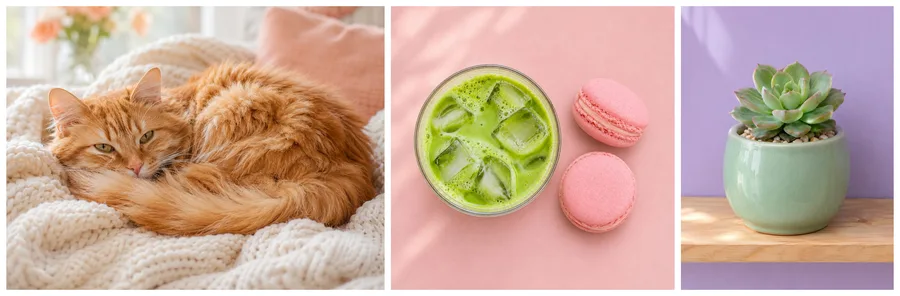
Side by side
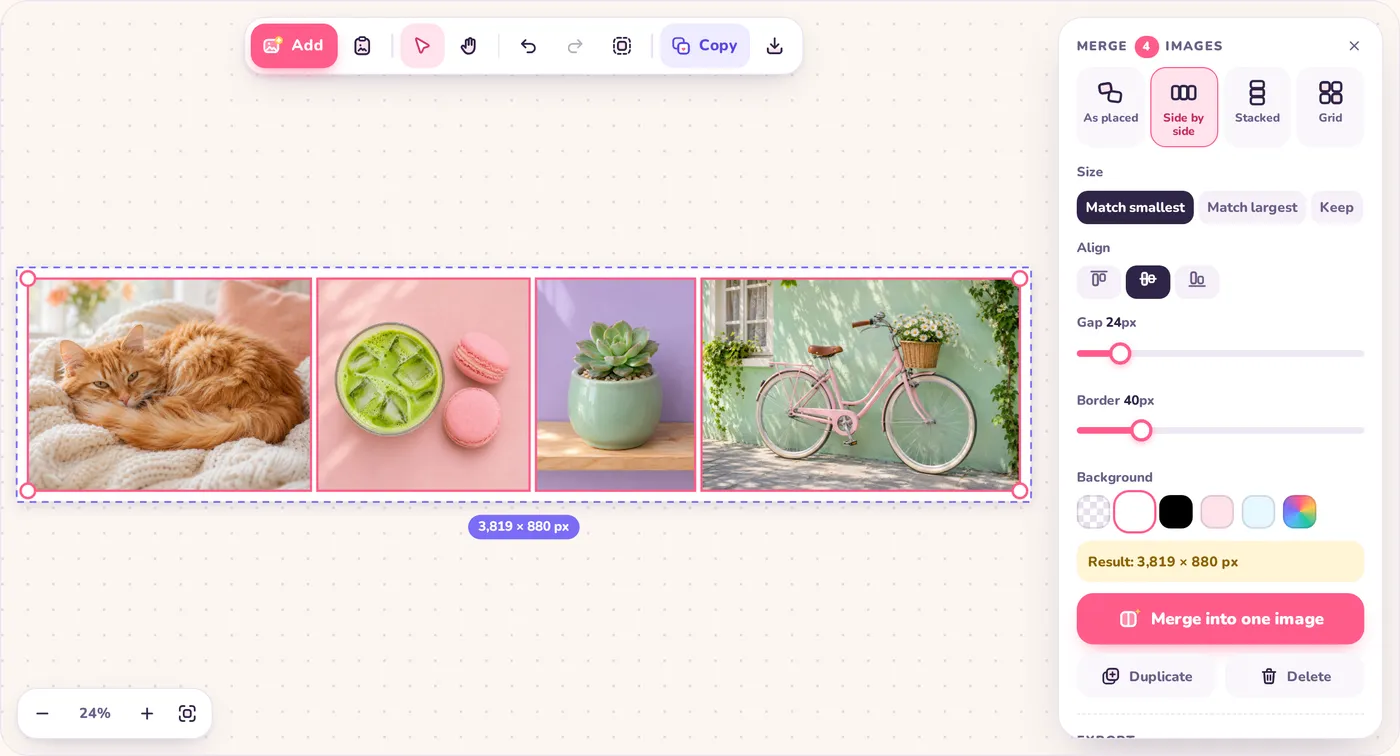
Combine two images side by side for before-and-after shots, comparisons or a wide banner. Heights can be matched automatically.
Click an image to edit · Shift-click or drag a box to select several · Ctrl/⌘ + scroll to zoom
Drop, paste or upload pictures, arrange them on an infinite canvas and merge them into one image. Crop, resize and copy to your clipboard, all in your browser.
or paste with Ctrl + Vdrag & drop filesnothing is uploaded
Free image combiner
Pimg.pro is a free image combiner that lets you combine images online in seconds. Add two photos or twenty, move them around like prints on a table, and merge them into a single PNG, JPG or WebP. Side by side, stacked, in a grid or exactly as you placed them: you choose.
Everything happens inside your browser tab. Your pictures are never uploaded to a server, so there is no waiting for uploads, no account to create and no watermark on the result.
The same canvas handles the small jobs around merging, too. Crop a screenshot, resize a photo to exact pixels, rotate or flip it, convert it to another format, or copy it straight to your clipboard and paste it into a chat, document or email.
How it works
You can combine images without signing up or installing anything. It works the same way on Windows, Mac, Chromebook, iPhone and Android.
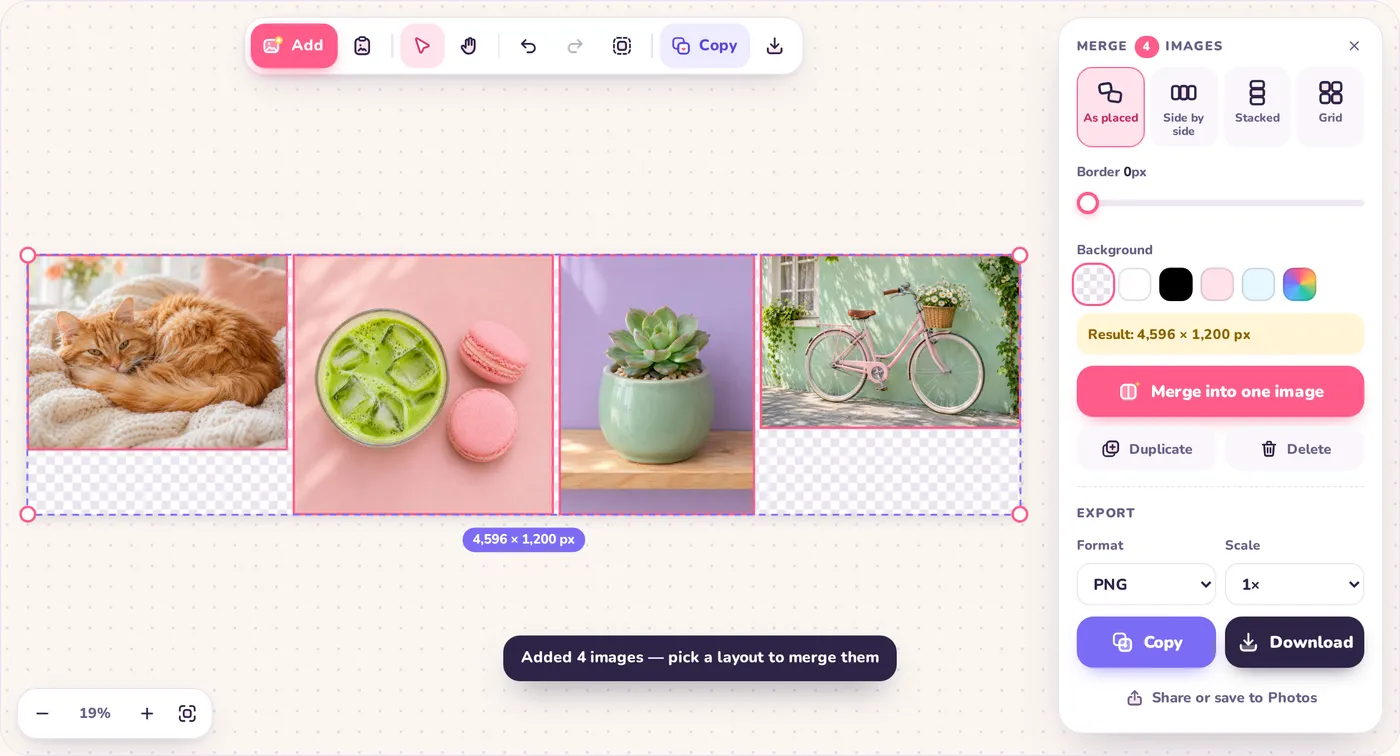
Click Upload images, drag files onto the canvas, or copy an image anywhere and press Ctrl + V (Cmd + V on a Mac). New images appear in a row, ready to combine.
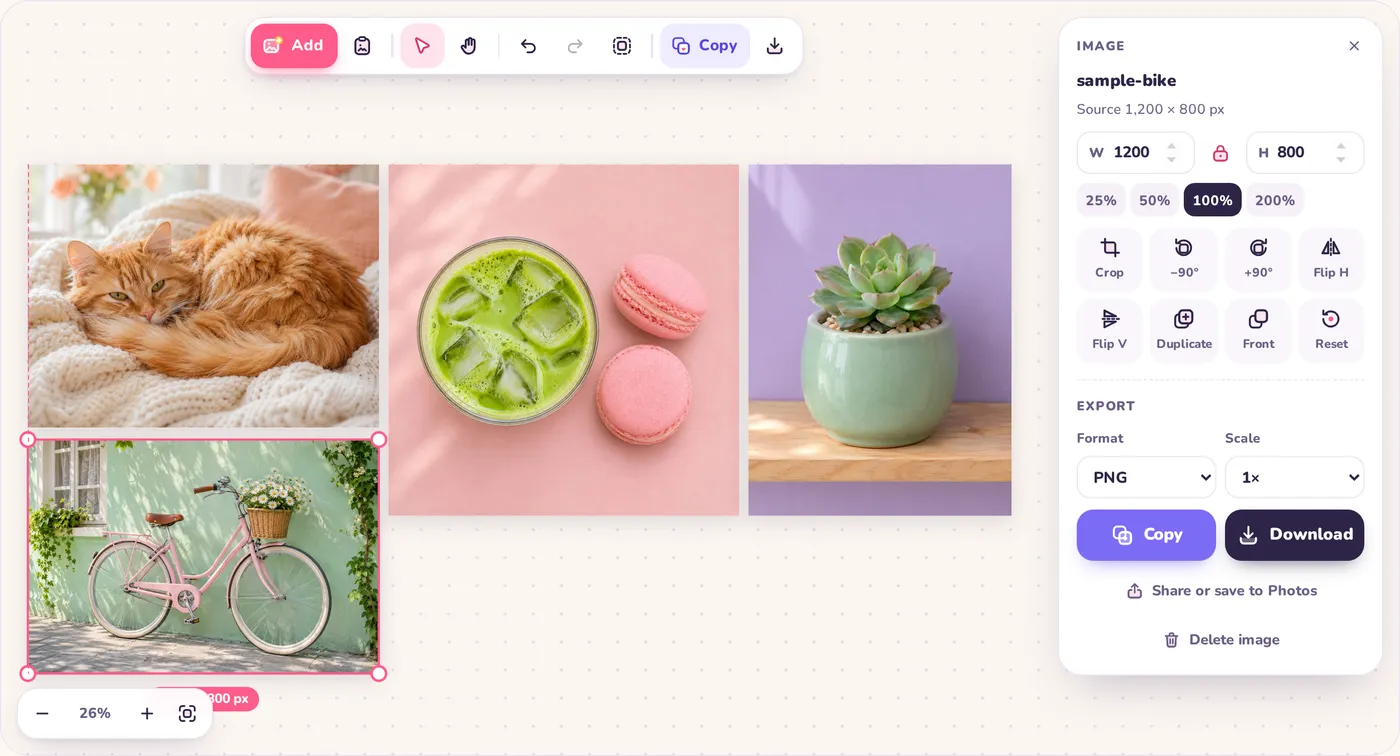
Drag images wherever you like; pink guides snap edges and centers into line. Shift-click or drag a box to select several, then pick Side by side, Stacked or Grid to line them up automatically.
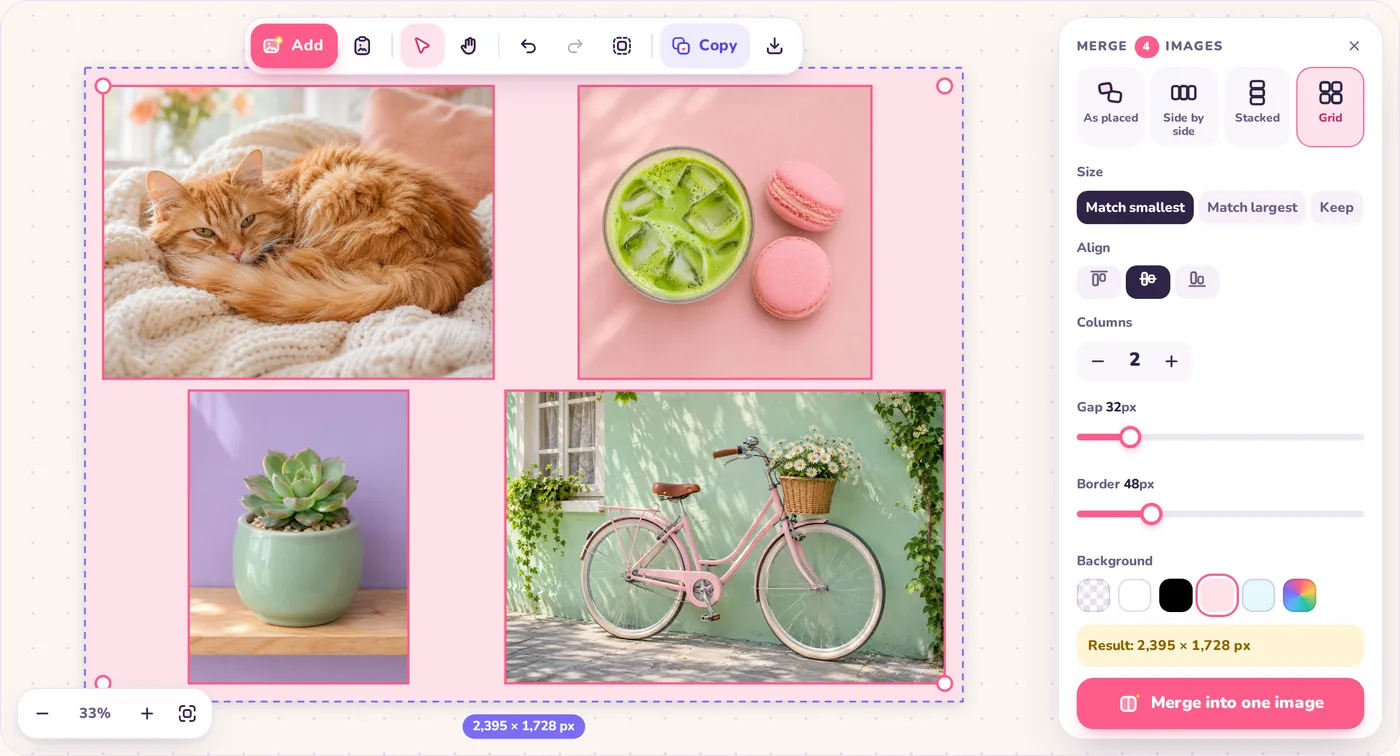
Match image heights so nothing looks lopsided, set the gap between pictures, add an outer border and choose a background: transparent, white, black or any color you like.
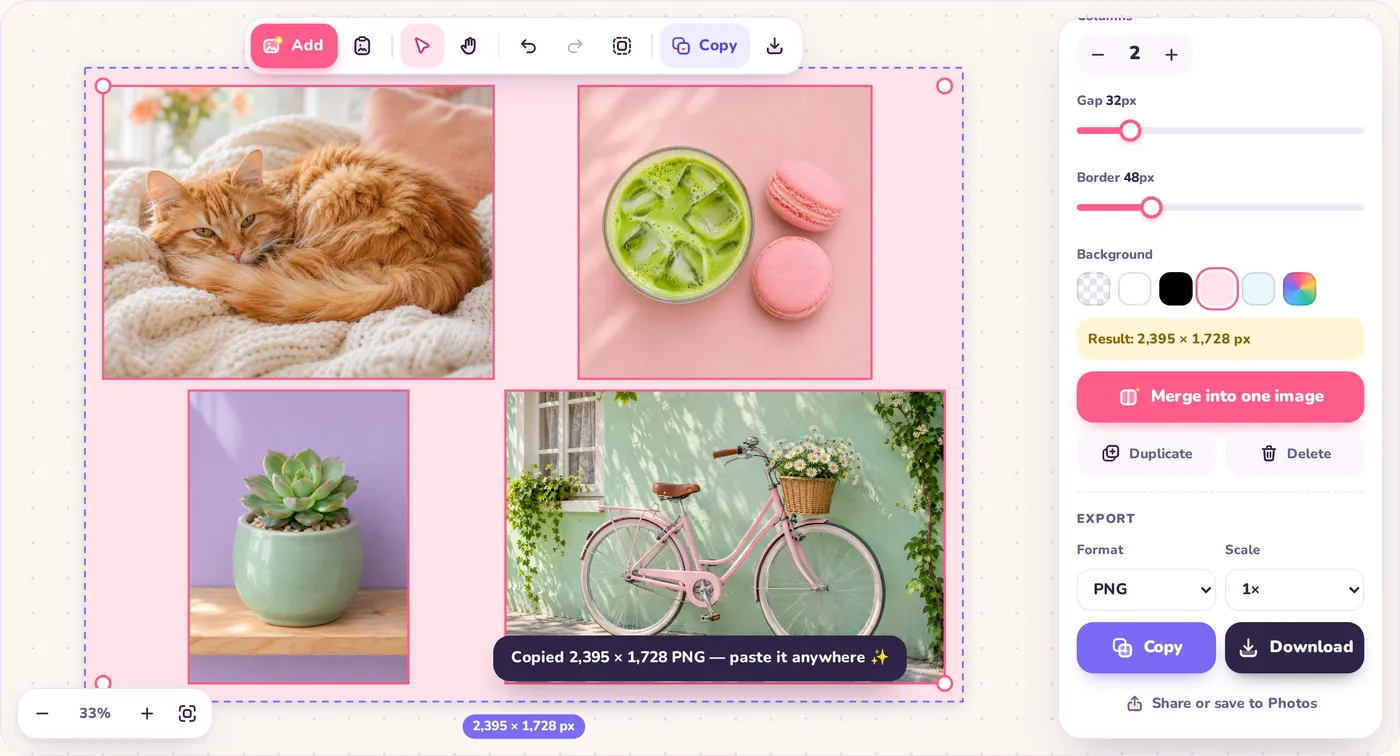
Press Copy to put the combined picture on your clipboard, or Download it as PNG, JPG or WebP at 0.5× to 3× size. Merge into one image adds the flattened result to the canvas so you can keep editing.
Merge modes
Whichever way you merge images, each layout keeps your original pixels at 1× scale, and pictures are never stretched out of shape unless you choose to.
Combine two images side by side for before-and-after shots, comparisons or a wide banner. Heights can be matched automatically.
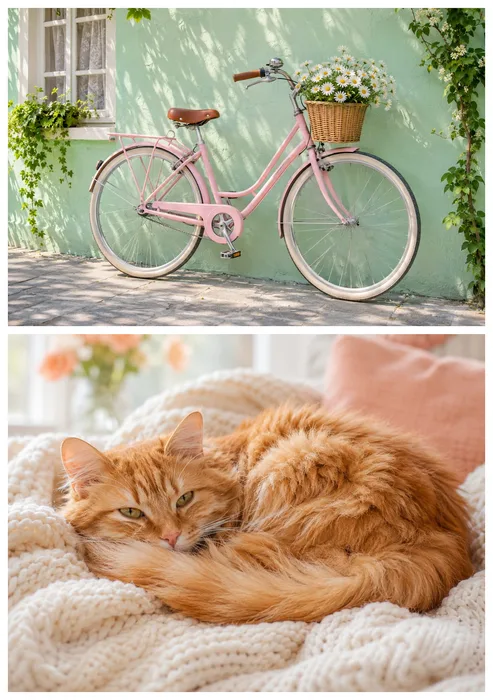
Stack images on top of each other to combine screenshots, recipe steps or chat threads into one tall picture.
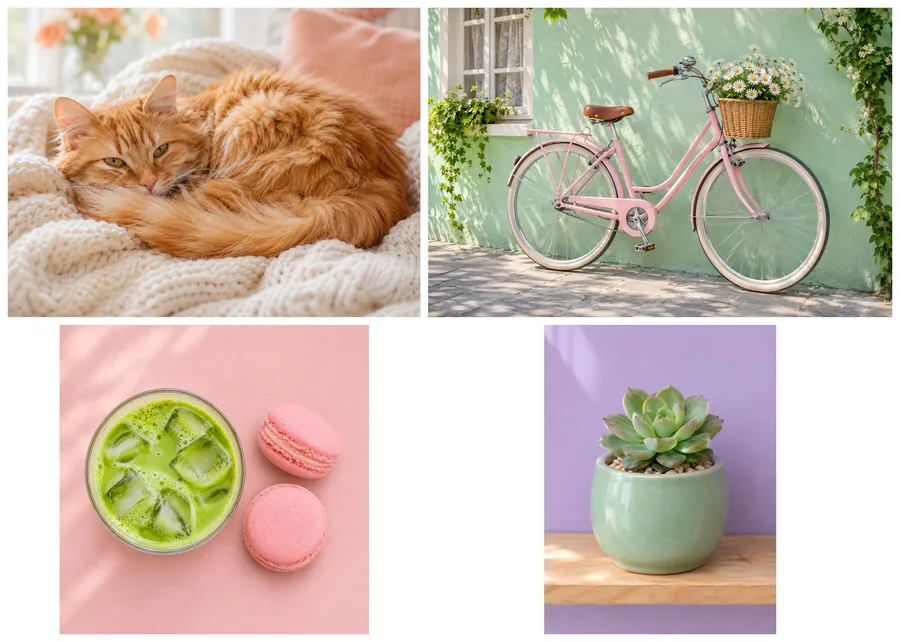
Combine photos into a grid or a simple collage. Choose the number of columns, and every row and column gets the same gap.
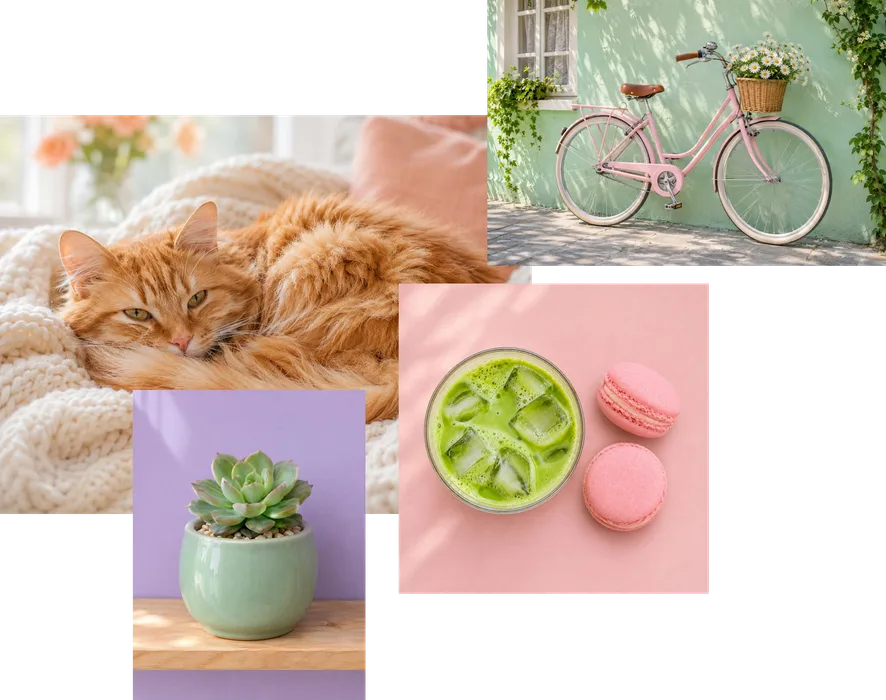
Arrange pictures freely, even overlapping, and merge images exactly as you see them. Handy for mockups and quick layouts.
Everyday image tools
Select a single image and the side panel turns into a small photo editor. Every change can be undone with Ctrl + Z.
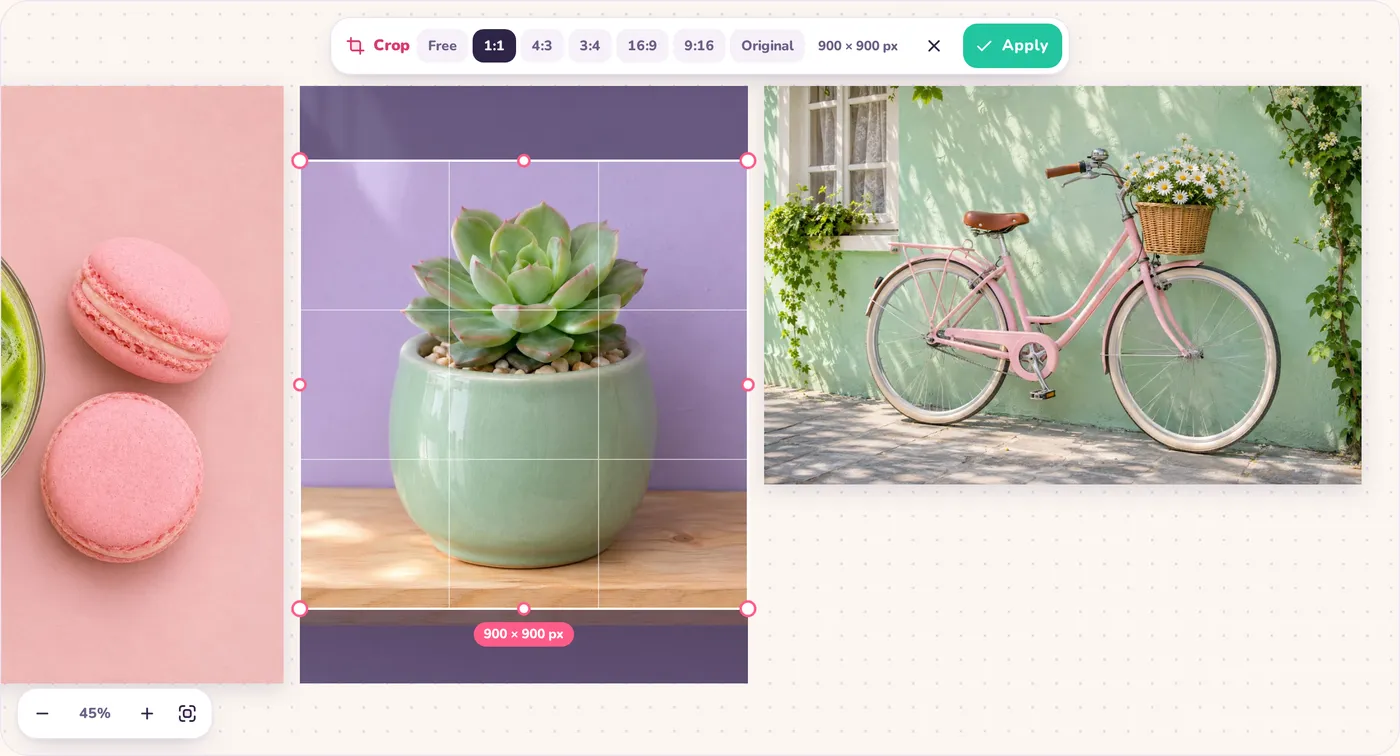
Drag the handles or pick a ratio: free, 1:1, 4:3, 3:4, 16:9, 9:16 or the original shape. Double-click an image to start.
Type a width or height with the aspect ratio locked, or jump to 25%, 50%, 100% or 200% in one click.
Turn images 90° either way and mirror them horizontally or vertically.
Copy any image or merged layout as a PNG and paste it straight into a chat, document, email or design app.
Save as PNG, JPG or WebP, pick a quality level, and export at 0.5× up to 3× size.
Take a screenshot, press Ctrl + V and it lands on the canvas. Great for stitching several screenshots together.
Private by design
Pimg.pro has no image server. When you combine images here, your browser reads the files from your own disk or clipboard, and all cropping, resizing and merging is done by your device.
Close the tab and the images are gone. We don't store them, we can't see them, and you don't need an account to use the tool. Read the privacy policy for the details.
Ideas
Combine two photos side by side to show a makeover, an edit or a repair.
Stack app screenshots or chat messages into one tall image that is easy to send.
Show several angles of an item in a clean grid on a white background.
Make a quick 2×2 or 3×3 photo grid without installing a collage app.
Combine cropped screenshots into one picture and paste it into a ticket or a how-to.
Line up designs, charts or memes at the same height so differences are easy to spot.
Shortcuts
Click the canvas first so it knows you're talking to it. On a Mac, use Cmd instead of Ctrl.
| Ctrl + V | Paste an image from the clipboard |
|---|---|
| Ctrl + C | Copy the selection, or the whole canvas, as an image |
| Ctrl + A | Select all images |
| Ctrl + Z / Ctrl + Shift + Z | Undo / redo |
| Ctrl + D | Duplicate the selection |
| Ctrl + S | Download |
| C · Enter · Esc | Start a crop, apply it, cancel it |
| R / Shift + R | Rotate right / left |
| Delete | Remove the selected images |
| Arrow keys | Nudge 1 px (hold Shift for 10 px) |
| Space + drag · H | Pan around the canvas |
| Ctrl + scroll · pinch | Zoom in and out |
| F · 0 | Fit to screen, zoom to 100% |
| Shift + drag a corner | Resize without keeping the aspect ratio |
| Alt + drag | Move without snapping |
FAQ
Yes. You can combine images, crop, resize and copy them for free, with no sign-up, and the pictures you export carry no watermark.
No. Files are opened and processed by your own browser and are never sent to a server. That is also why even large photos appear instantly.
Add both images, press Ctrl + A (or drag a box around them), choose Side by side in the panel, then click Copy or Download. Keep Match smallest on to give both pictures the same height.
Select the images and choose Stacked. They are lined up top to bottom in the order they sit on the canvas, so drag one higher or lower first if you want a different order.
Yes. Pick Grid, then use the plus and minus buttons to set the number of columns. Gap, border and background work for grids too.
Yes. When you merge images side by side, Match smallest scales them to the height of the smallest one and Match largest to the tallest. When stacking, the same options match widths. Choose Keep to leave every picture at its own size.
At 1× scale every photo keeps its own pixels, so the result is as sharp as the originals. Quality only drops if you make an image smaller, choose a lower JPG or WebP quality, or the combined picture is bigger than your browser can create. Very large results are scaled down to fit, and the app tells you when that happens.
Yes. Transparent PNG and WebP images stay transparent when you export as PNG or WebP with the transparent background selected. JPG has no transparency, so empty areas turn white.
Yes. On iPhone and Android, tap Upload images to pick photos, drag with one finger, pinch to zoom, and double-tap an image to crop it. On phones a Share button also appears, so you can send the result to your photos or another app.
Open Pimg.pro in Safari, tap Upload images and pick the photos from your library. Choose a layout, then tap Share or save to Photos and pick Save Image to put the combined photo in your Photos app.
Click Copy, or click the canvas and press Ctrl + C. The result is copied as a PNG, ready to paste into a chat, document, email or design app. If your browser blocks clipboard access, use Download instead.
You can open JPG, PNG, WebP, GIF (first frame), AVIF, BMP and SVG files, plus HEIC photos in Safari. You can save as PNG, JPG or WebP.
Not yet. Pimg.pro exports images (PNG, JPG and WebP). If you need a PDF, merge your pictures into one image here first, then print it to PDF or place it in a document.
There is no fixed limit. The practical limit is your device's memory and the largest canvas your browser can create. If a merge would be too big, it is scaled down automatically and you'll see a note.
Scroll back up, drop in your pictures and have them merged in seconds.